

Jira importer
Plane imports your projects, issues, and related data from Jira. There are two connectors, depending on your Jira deployment:
- Jira Cloud for sites hosted at
*.atlassian.net. - Jira Server / Data Center for self-hosted Jira. Server and Data Center use the same connector and the same steps.
Both connectors import into a Plane project you choose and run on the same import engine, so the data you get is the same. The differences are in how you connect and a few deployment-specific options, called out below.
INFO
The Jira importer is available on Plane Cloud and on all plans of the Commercial Edition for self-hosted instances.
Before you begin
- Issue types: To bring Jira issue types in as Plane work item types, enable the Work Item Types feature on the target Plane project before importing. Without it, issues still import, but issue types are not created as work item types.
- Jira access: The account you connect with must be able to read the Jira project you are importing, along with its issues, statuses, priorities, issue types, and labels.
Choose your connector
Go to Workspace Settings → Imports, then click Import in either the Jira section (for Jira Cloud) or the Jira Server/Data Center section (for self-hosted Jira).
Connect to Jira
Jira connects with a Personal Access Token. Provide three values:
| Field | What to enter |
|---|---|
| Personal Access Token | An API token created at id.atlassian.com or from your Jira Server / Data Center instance |
| User email | The email address linked to that token |
| Jira domain | Your Jira site URL, for example https://your-site.atlassian.net |
Click Connect Jira to link the accounts. Plane verifies the credentials before continuing.
Run the import
After connecting, work through the import steps. The steps are the same for all deployments, except that the Import users step appears only for Jira Cloud (Server and Data Center bring in users automatically).
Select Plane project. Choose the Plane project to import into.
Configure Jira. Choose the Jira site and the Jira project to import from. Optionally, add a JQL filter to import only the issues that match a query. Plane scopes your query to the selected project automatically.
Import users (Jira Cloud only). Choose how to bring in users:
Upload CSV (recommended). Upload a user export from Jira. See Export users from a site for how to generate it.
Admin or Member users invited to your workspace count toward your billed seats immediately, but the importer treats them as active members only once they accept the invitation. So you have two options: let the importer create users (don't invite them manually first), or invite everyone first and wait for them to accept before importing.
Skip user import. Select Skip Importing User data and add users later.
WARNING
If you skip user import, work items and comments show the name of the person who ran the migration, and the Assignees field is left empty.
For Jira Server / Data Center, there is no user step. Plane automatically syncs the users referenced by the imported issues.
Map states. Map each Jira status to a Plane state. Select Auto create and map the remaining Jira states to create and map anything you don't map by hand.
Map priorities. Map each Jira priority to a Plane priority. If there is no match, choose None.
Summary. Review your mappings. Click Back to adjust, or Confirm to start the import.
The import runs in the background and takes a few minutes to hours depending on the size of your Jira project. When it finishes, open Work items in your Plane project to confirm the data imported.
Issue types and work item types
When the Work Item Types feature is enabled, Jira issue types are imported as Plane work item types. You do not map them; they are created automatically. On the Free plan (or with the feature off), issues still import but issue types are not created as work item types.
What gets imported
| Jira | Plane | Notes |
|---|---|---|
| Issues | Work items | Summary becomes the work item title. |
| Issue description | Work item description | Formatting is preserved. Inline images are re-uploaded to Plane. |
| Status | States | Mapped in the Map states step. |
| Priority | Priority | Mapped in the Map priorities step. |
| Issue types | Work item types | Requires the Work Item Types feature. Imported automatically, not mapped. Can be created at the project or workspace level. |
| Epics | Work item type | Imported as a regular work item type, not as Plane's dedicated Epics feature. |
| Labels | Labels | Every imported work item also gets a JIRA IMPORTED label so you can find migrated items easily. |
| Custom fields | Custom properties | Supported Jira custom and system fields become work item custom properties, with their options. Unsupported field types are skipped. Rich text custom fields require the rich text property feature. |
| Users | Members | Cloud: from your CSV, or skipped. Server / Data Center: synced automatically from the issues. |
| Reporter | Created by | Also stored as a "reporter" property on the work item. |
| Assignee | Assignees | Blank if you skip user import. |
| Comments | Comments | Includes author and timestamp. If you skip user import, comments show the person who ran the migration. |
| Attachments | Attachments | On both issues and comments. See Attachments for a Server / Data Center note. |
| Sub-tasks and parent links | Parent-child relationships | Sub-tasks import as work items linked to their parent. |
| Linked issues | Relations | Blocks, blocked by, relates to, and duplicate. Jira link types with no Plane equivalent are created as custom relation types. Links across projects resolve once the other project is also imported. |
| Sprints | Cycles | Including the cycle's work items and start and end dates. |
| Components | Modules | Including the module's work items. |
| Fix versions / affected versions | Custom properties | Stored as work item properties. |
| Story points | Story points | From your configured story-points field. |
| Worklogs | Worklogs | Time tracking is enabled on the project when worklogs are imported. |
| Watchers | Subscribers | |
| Change history | Work item activity | |
| Start date / Due date | Start date / Due date | |
| Created date | Created at |
Every imported work item also gets a Linked Jira Issue link back to the original issue in Jira, and its original Jira key number is preserved.
Attachments
Attachments on issues and comments are imported by default.
Jira Server / Data Center behind SSO. Jira Server and Data Center stream attachment files from a secure servlet (/secure/attachment/...). On instances where that servlet sits behind web SSO (SAML), it does not accept the personal access token the way the REST API does, so the download is redirected to your identity provider and Plane receives the login page instead of the file. When this happens, attachments fail to import.
To work around it, expose a custom attachment download endpoint on your Jira instance (typically a ScriptRunner REST endpoint) that is not behind the SSO filter, and have Plane use it for attachment downloads. Follow the attachment endpoint setup instructions.
- On self-hosted Plane, set the download path (with an
{id}placeholder for the attachment ID, for example/rest/scriptrunner/latest/custom/downloadAttachment?id={id}) in your integration service configuration. - On Plane Cloud, contact Plane support to have the download path configured for your instance.
This applies to Jira Server and Data Center only. Jira Cloud is not affected and needs no workaround.
Re-run and resume an import
Open the import from Workspace Settings → Imports to manage it.
Re-run (all deployments). Re-running restarts the import for that project from the beginning, using the same configuration and filter. It is a full re-sync, not a changed-only sync, but it does not create duplicates: Plane matches items by their original Jira identity and updates existing work items in place while adding any new issues. Use re-run to bring across new and updated Jira issues after your initial import.
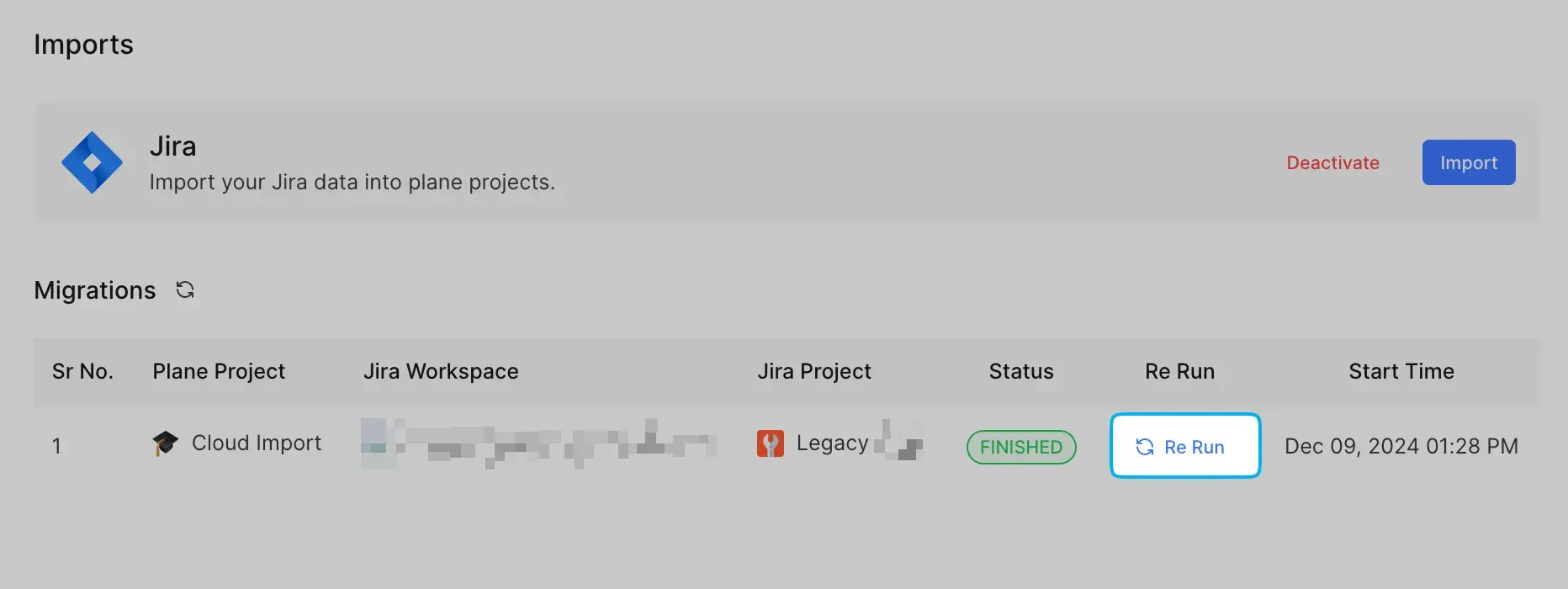
Resume (Jira Server / Data Center only). If a Server or Data Center import fails or times out, you can resume it. Resume continues from where the import stopped rather than starting over. It is available for a limited window (about 7 days) after the job stops; after that, use re-run instead.
Notes and limits
- Reliability. Server and Data Center imports track each batch of issues and automatically re-dispatch any batch that goes missing, and they detect and recover from stalls. This significantly reduces timeout and error failures on large imports.
- Large instances. Very large Jira projects import in batches and may take a while. If your Data Center instance rate-limits aggressively, imports still complete but run more slowly.
- Cross-project links. Links between issues in different Jira projects resolve only after both projects have been imported into Plane.
- Unsupported custom field types are skipped rather than failing the import.